How to connect a smart trainer to your iPhone
Pairing is simple once you know two rules: Bluetooth, not ANT+, and only one app can hold control at a time. A step-by-step guide, with the fixes for the three problems everyone hits.
Ole BirkelandFounder, Cadexa
- Published
- 5 Oct 2026
- 2 min read
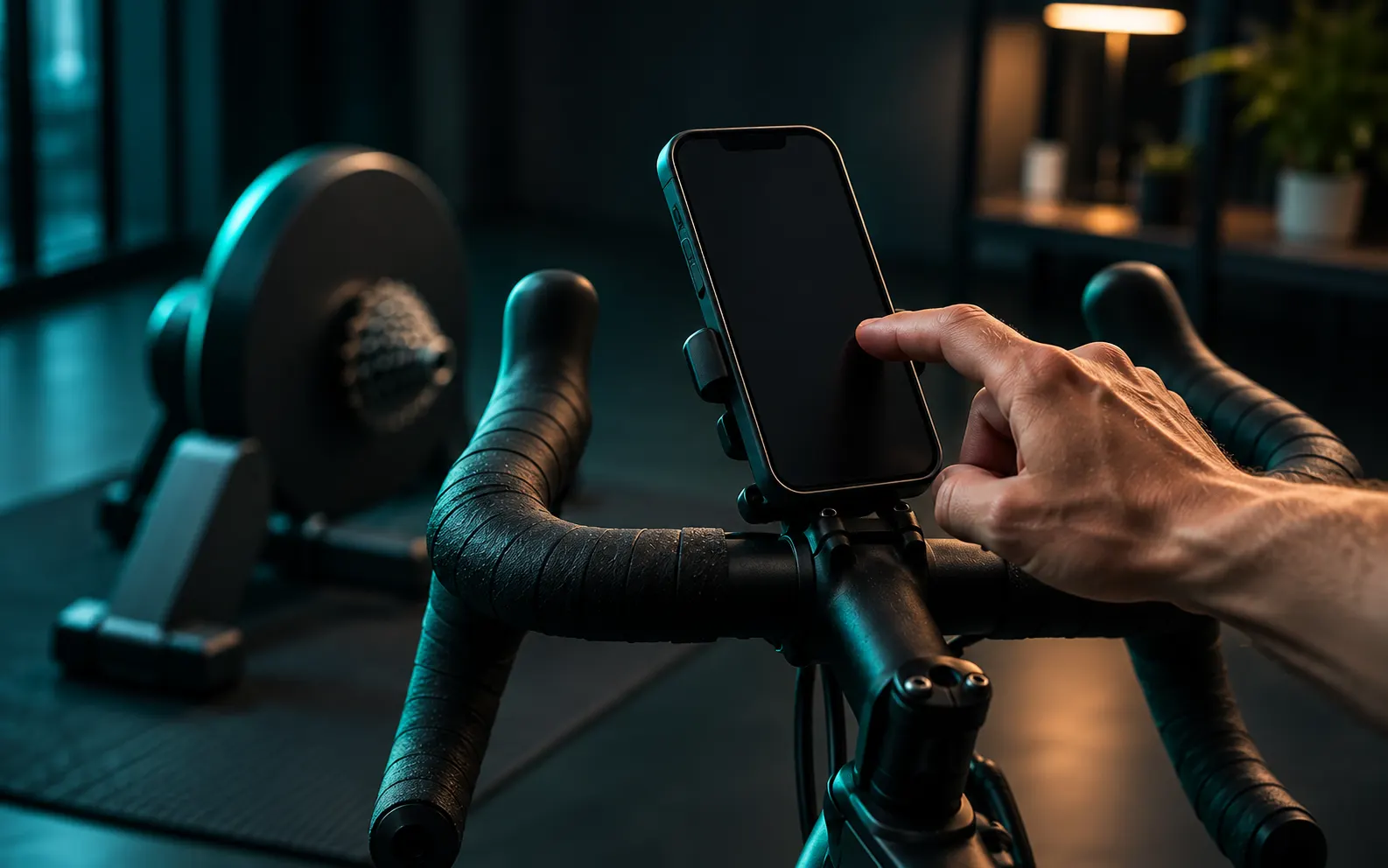 AI-generated image
Tutorial · Editorial content without product testing. How we work.
Before you start
- Power the trainer and let it boot; most show a status LED.
- Update its firmware once with the manufacturer app (Wahoo, Tacx Training, Elite Upgrado, and so on). Then close that app fully; it will otherwise keep the trainer’s single control slot.
- Turn on Bluetooth on the iPhone. You do not pair a trainer in iOS Settings; training apps connect directly.
- iPhones do not have ANT+. Every trainer you can control from an iPhone does so over Bluetooth, usually FTMS.
Pairing in the Cadexa app
- Open Cadexa, go to Devices, then Trainer, and tap Search. The app scans for devices advertising the FTMS service and the Cycling Power service.
- Pick your trainer from the list. The app connects, reads its feature bits and subscribes to Indoor Bike Data. Pedal, and power and cadence appear on the Home screen.
- Under Devices → Heart rate, search and pick your strap or watch broadcast the same way.
- Start a workout. The app requests control, starts the machine and sends the first target. If you turn on developer mode you can watch every command and acknowledgement in the debug log.
Cadexa remembers paired devices and reconnects automatically on the next ride.
The three problems everyone hits
“Control not permitted” or resistance does not change
Another app holds control. Force-quit the manufacturer app and any other training app, power-cycle the trainer if needed, and reconnect. Trainers grant control to one client at a time.
The trainer does not appear in the scan
- It is already connected to another phone, tablet or computer. Disconnect it there.
- Bluetooth permission for the app was denied. Check iOS Settings → Privacy → Bluetooth.
- You are out of range or there is a wall between you; move the phone closer during pairing.
Power or cadence drops out mid-ride
- Keep the phone within a few metres of the trainer, ideally in line of sight.
- Switch off Bluetooth on nearby devices that keep trying to pair.
- Make sure the app is allowed to run in the background; Cadexa uses the Bluetooth background mode so a locked screen does not end the ride.
Checking your exact model
Protocol support is declared by the manufacturer; verified behaviour with the app is a separate question. The Cadexa Gear Compatibility tool shows both for every trainer in our database, and tells you honestly when a combination has not been tested yet.
About the author
Ole BirkelandFounder, Cadexa
Builds the Cadexa indoor-cycling app in Bergen, Norway, which means living inside the Bluetooth FTMS specification and watching how trainers actually respond to it. Writes the technology explainers and runs the compatibility tests.
Related reading
Smart trainers
Best smart trainers for indoor cycling: a specification-based shortlist
No hands-on testing yet, and we say so. This shortlist is built from manufacturer specifications with sources, organised by the decisions that matter: drive type, price band, protocols and gradient.
Smart trainers
Bluetooth FTMS explained: the protocol that lets an app control your trainer
Every modern smart trainer speaks FTMS. Here is what the Fitness Machine Service actually does, what the control point commands are, and why “supports FTMS” does not guarantee that every app feature works.
Smart trainers · Wahoo Fitness
Wahoo KICKR CORE 2: features and compatibility
What changed from the original CORE, what did not, and how the second generation lines up with Bluetooth FTMS control from a phone. A specification-based overview ahead of our hands-on test.